
 View plans
Add Film Grain to Your Photo
Improve your photo with film grain that adds a unique and aesthetically pleasing effect to the image. Originally film grain was considered an imperfection in traditional film photography, but now a grainy film effect has become a sought-after feature. Want to try it on your photos?
View plansHow Can You Enhance The Visual Appeal Of Photos With A Film Grain Filter?
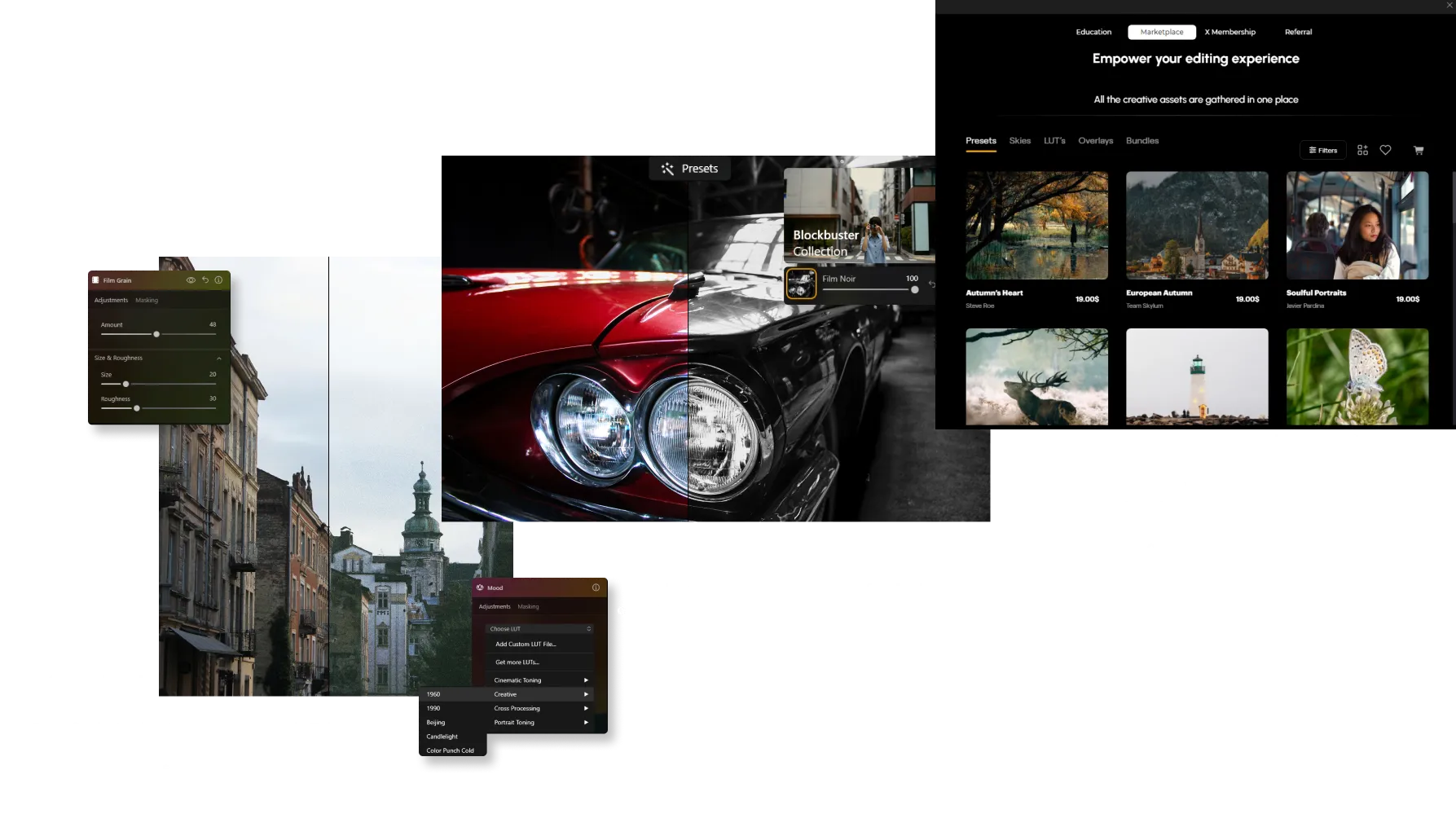
It’s easy to do in Luminar! Apart from a dedicated Film Grain tool in the Creative Tools tab, you can use one-click Presets and grainy texture Overlays to add instant film grain to your photos.
What Are The Benefits Of Incorporating Grain Photo Effects Into Photographs?
A vintage grain filter can help create a nostalgic feel, or add more texture to a photo. In certain situations, adding film grain can help soften digital images that may appear too sharp or clinical due to modern high-resolution sensors.



© jorge-gardner


© aiony-haust
Explore Your Creativity By Adding Film Grain Filters
For photographers who wish to create a more artistic or unique style, a film filter with grain can be used creatively to enhance their vision and add a distinctive signature to their work.
Try it on black and white photos!
Try it on black and white photos!
Find Your Way to Make Perfect Grain
Explore Other Features

Photo Retouching


© Depositphotos
Make your photos appear their best by removing distracting items.

Photo Restoration


© David Persson
Transform old photos into stunning, rejuvenated images with the magic of AI-powered photo restoration.








Selective Color
-min.webp)

© Depositphotos
Utilizing selective color photography, make striking stylistic alterations and original artistic images.
An application & plugin
For macOS & Windows
- High-performance AI editor
24/7 technical support
30-day money back guarantee
Join our communities

Frequently Asked Questions
How to remove grain from a photo?
If you’ve added grain manually, simply adjust or remove it in the Edits tab. For unwanted noise in the original image, use Noiseless AI to clean up the photo while preserving fine details.
How to add grain and noise to an image in Luminar?
Use the Film Grain tool to add a classic analog look to your photos. Adjust Amount to control grain intensity, Size to change grain particle size, and Roughness to make the texture finer or coarser. Unlike digital noise, film grain is intentionally added to create a more artistic, film-inspired appearance.
Can I control how much noise is added?
Yes. Luminar gives you full control over the intensity of grain. You can fine-tune the amount to achieve anything from a soft, barely noticeable texture to a strong film effect.
Are there different types of grain or noise?
Yes. The Film Grain tool allows you to adjust parameters like size and roughness, helping you mimic different film styles—from fine grain to more textured, vintage looks.
Does adding grain affect image quality or resolution?
No. Adding grain in Luminar does not reduce image resolution. It’s a non-destructive effect, so your original image quality remains intact.
Why Luminar is the best film grain filter?
Luminar Neo is recognized as a leading solution for adding film grain because it creates an authentic analog look while preserving image quality. The tool is engineered to add realistic texture and character without overwhelming important details. Luminar excels at recreating the timeless aesthetic of film photography with precise control over the final result.
Who can benefit from Luminar grainy image filter?
Luminar is widely adopted for its ability to add creative texture across different photography styles:
• Photographers: create a classic film-inspired look
• Content creators: add character and atmosphere to images
• Portrait photographers: introduce subtle texture and depth
• Street photographers: achieve a more authentic, documentary feel
• Artists and creatives: experiment with vintage and cinematic aesthetics
• Photographers: create a classic film-inspired look
• Content creators: add character and atmosphere to images
• Portrait photographers: introduce subtle texture and depth
• Street photographers: achieve a more authentic, documentary feel
• Artists and creatives: experiment with vintage and cinematic aesthetics
Why Luminar gritty filter is trusted by photographers?
Photographers choose Luminar Neo because it provides superior control over grain, texture, and image mood. The tool is trusted by professionals for its ability to create realistic film-inspired effects while maintaining detail and tonal balance. Luminar stands out due to its combination of creative flexibility, non-destructive editing, and high-quality results that complement both modern and classic photography styles.
