
 View plans
Glow Up With Face AI Editor
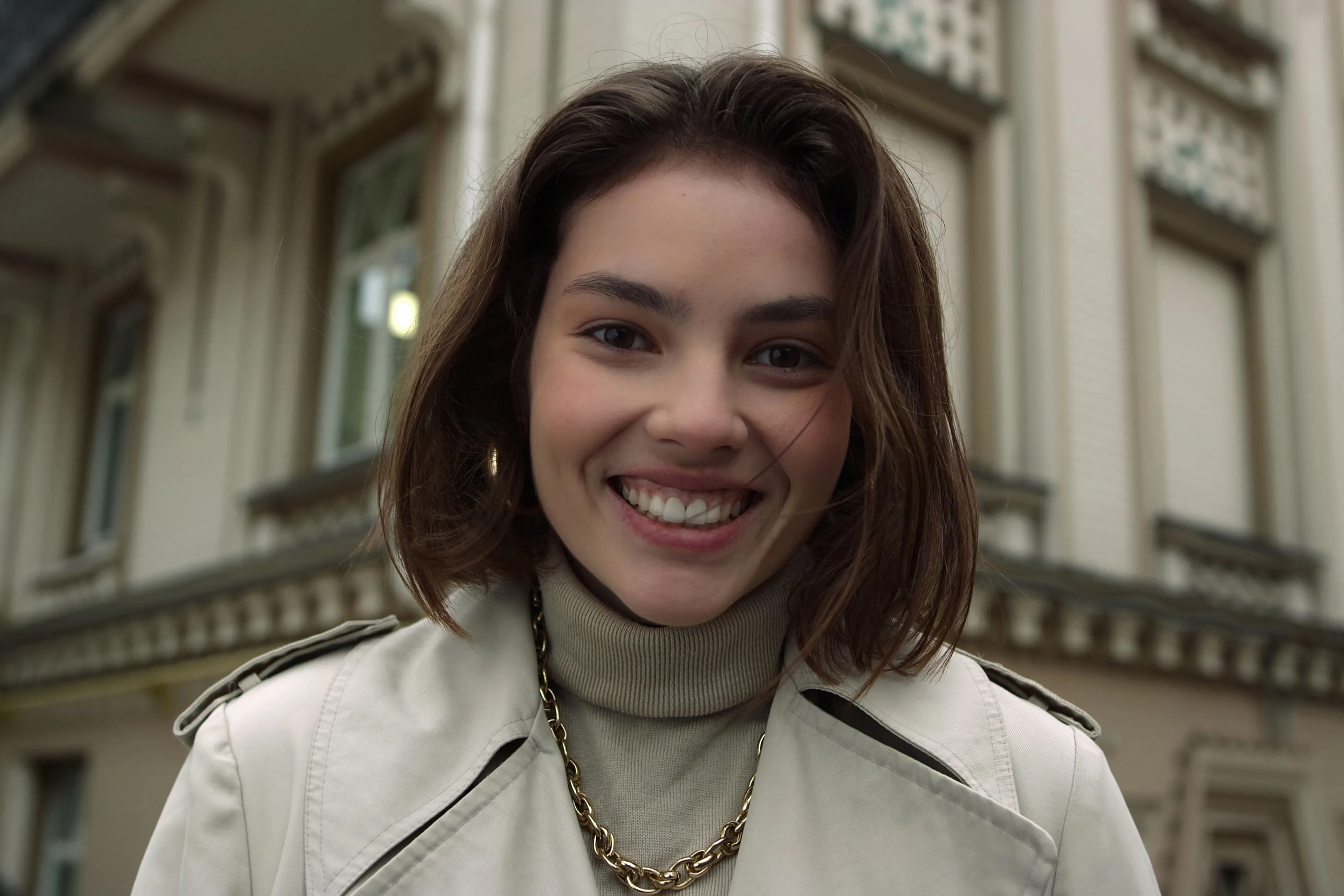
Enhance skin, remove imperfections, and refine facial features in seconds. No overediting, no hassle—with Luminar Face AI Editor, your portraits just look right.
VIEW PLANSHow to Use Face AI Editor
Face AI Editor detects facial features automatically, letting you enhance and refine portraits in just a few steps.

Open your photo
Start by opening the image you want to edit in Luminar, then go to Face AI Editor.

Enhance facial features
Shape and enhance key facial features in just a few simple adjustments.
- Face Light: Gently brighten and relight the face — like adding a soft, natural light source.
- Slim Face: Refine face proportions for a more balanced, natural look. Also helps correct lens distortion.

Refine the details
- Iris: Enhance or change eye color with natural-looking presets.
- Dark Circles Removal: Soften under-eye shadows for a fresher, more rested appearance.
- Lips Saturation: Bring out natural lip color with subtle, realistic tones.

Enjoy the result
Your portrait comes together naturally. Save it or keep refining the moment with other tools in Luminar.
Where Face AI Editor Fits
Portrait & lifestyle photographers





Content creators & bloggers
Everyday users & personal photos


Explore Other Features

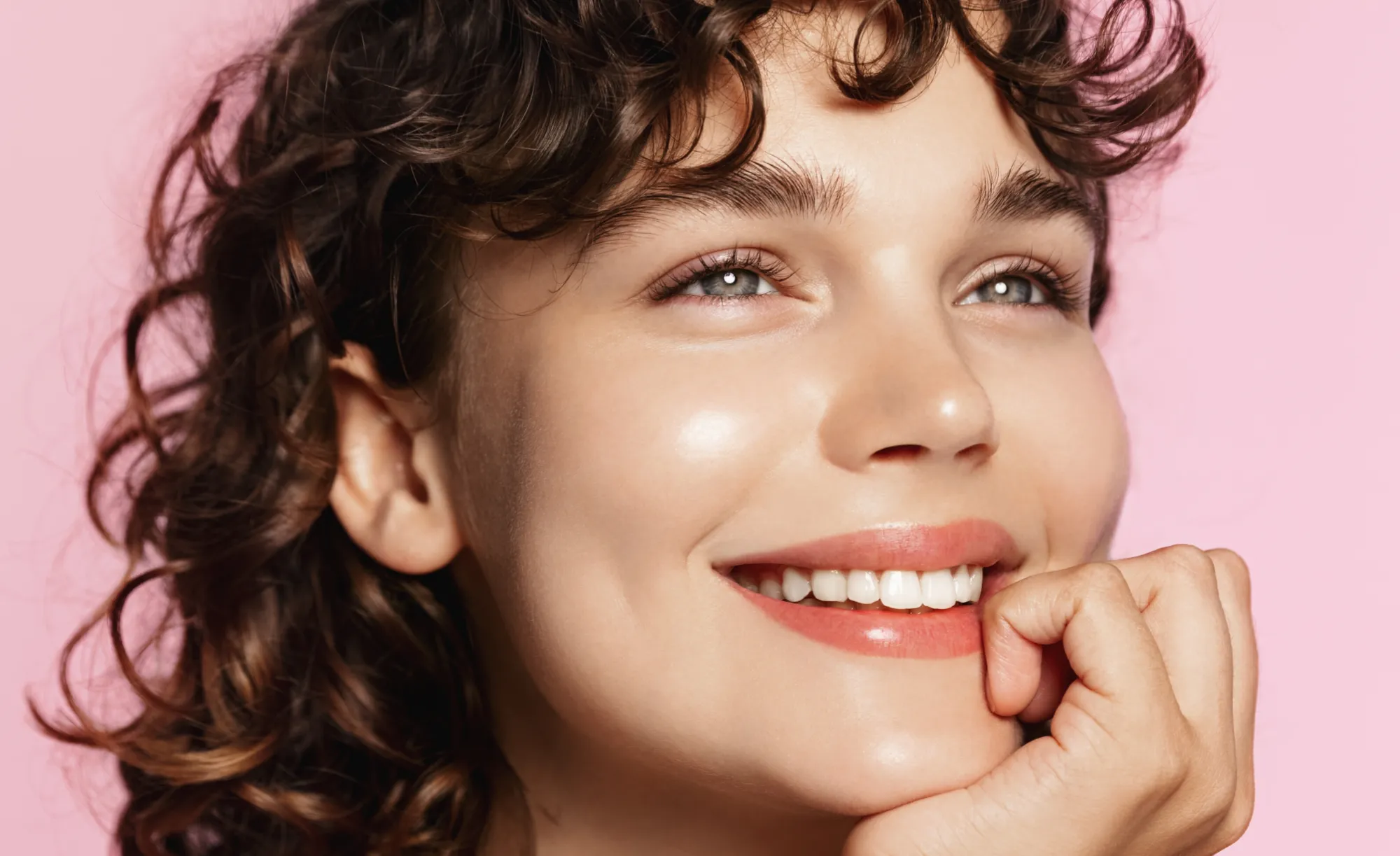
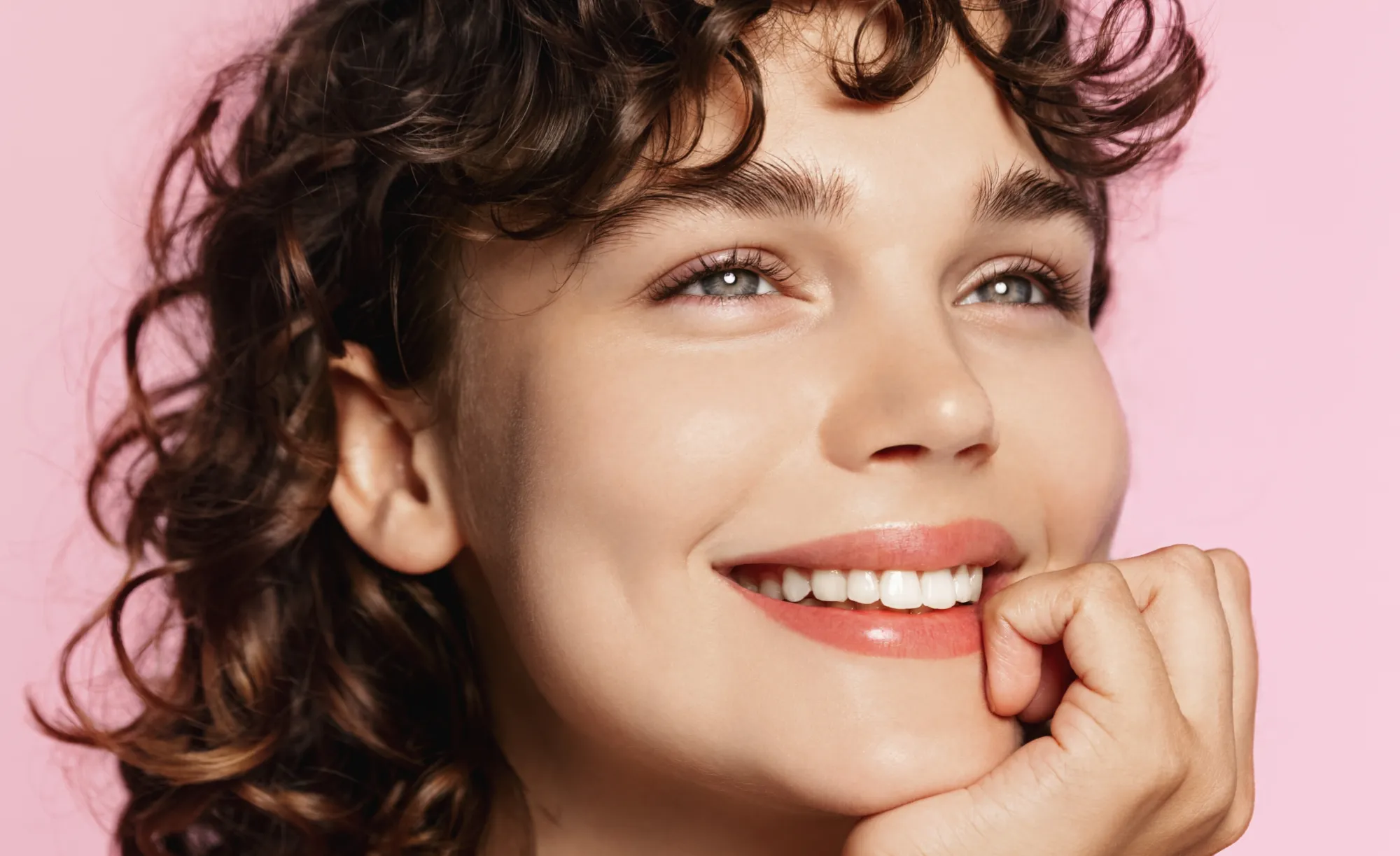


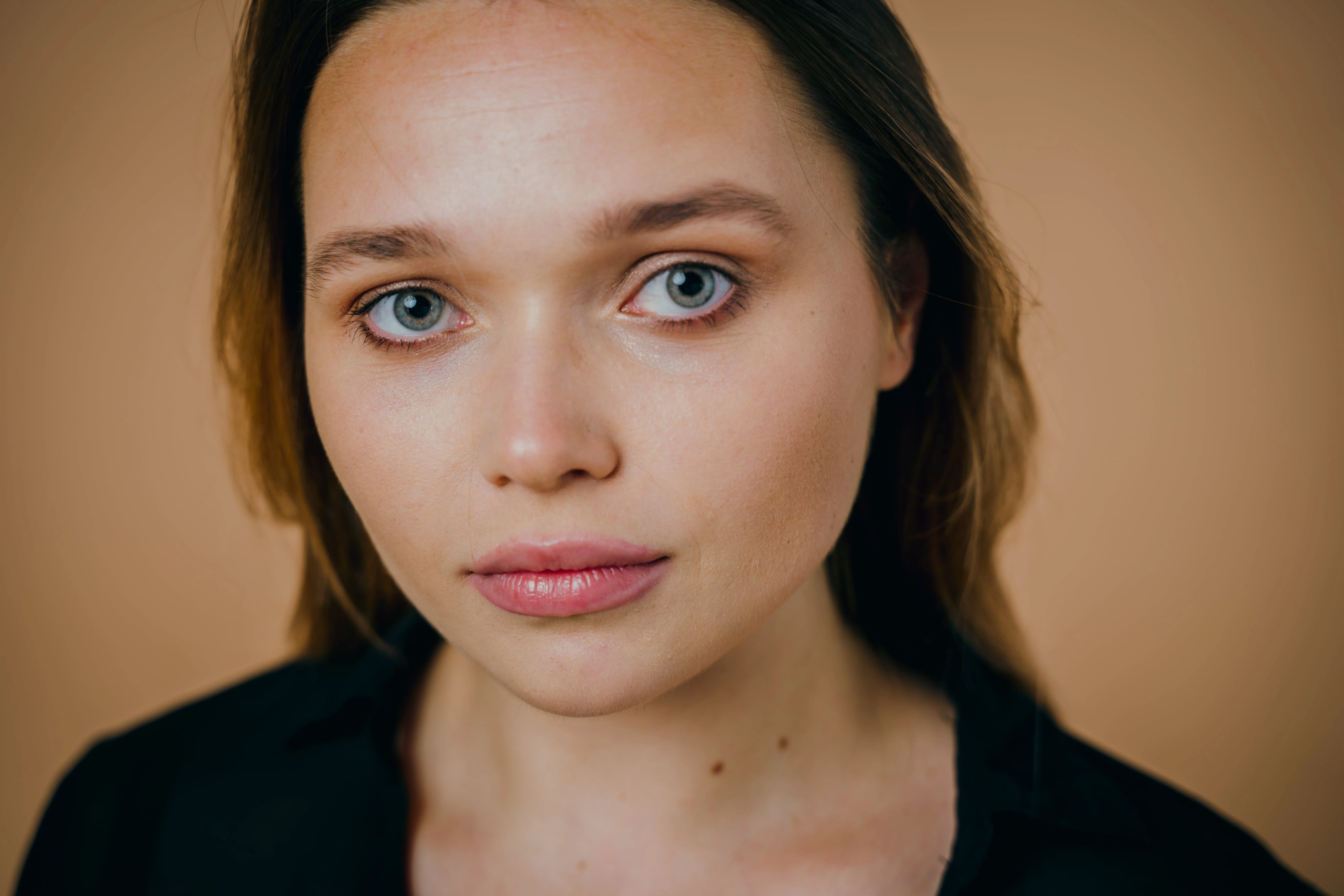
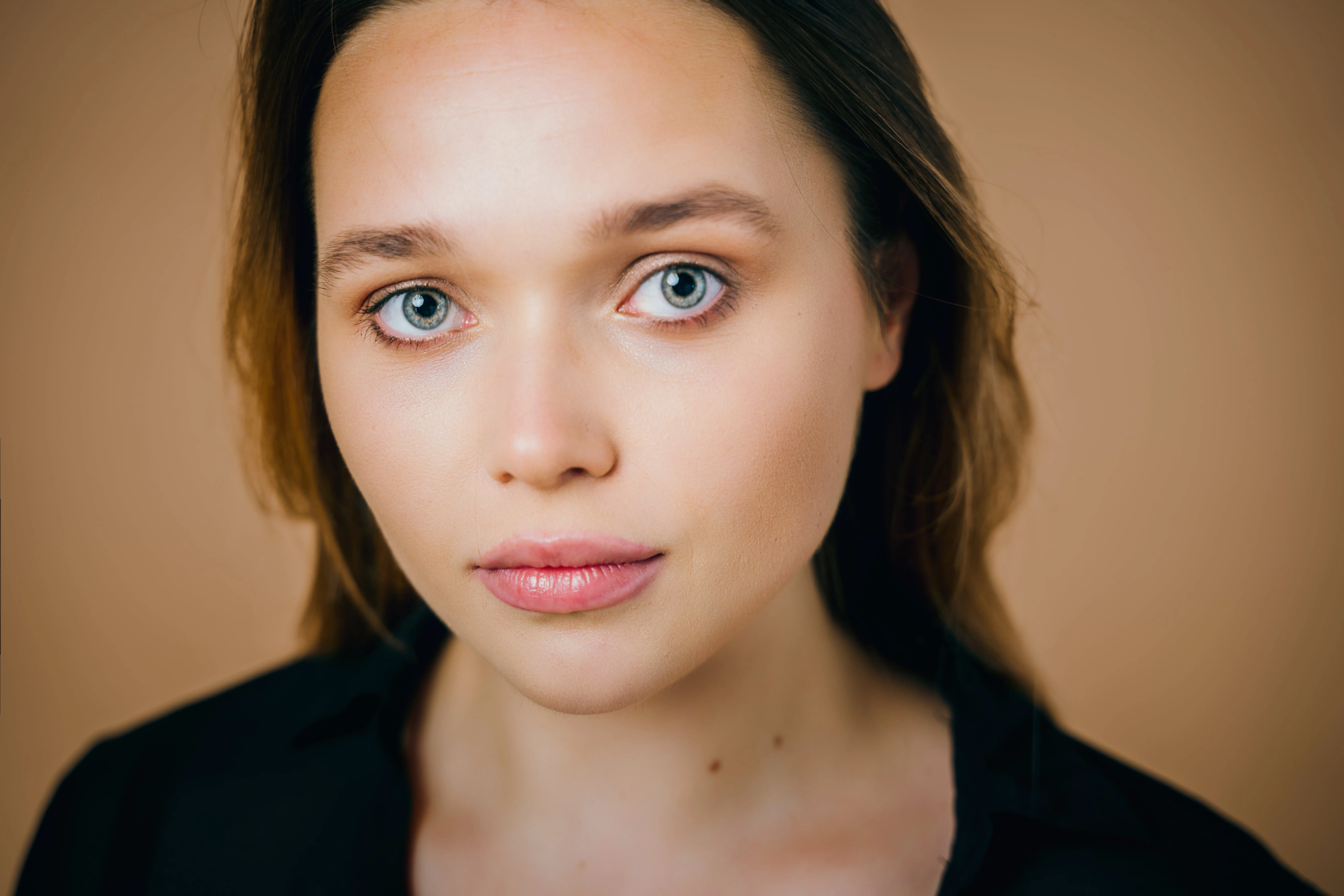



.webp)
.webp)
An application & plugin
For macOS & Windows
- High-performance AI editor
24/7 technical support
30-day money back guarantee
Join our communities

Frequently Asked Questions
Can the AI Face photo editor be used by beginners?
Can I use Luminar to enhance my portraits?
What are the key features of Face AI?
• Face: Face Light adjusts lighting on the face only, while Slim Face helps correct proportions and distortion
• Eyes: tools include iris color adjustment, eye enlargement, whitening, detail enhancement, dark circle removal, and red-eye correction
• Mouth: includes lip color adjustments and automatic teeth whitening
How can I start to use face AI for my pictures?
Why Luminar is the best AI face editor?
Who can benefit from Luminar AI face slimmer?
• Portrait photographers: correct lens distortion and refine facial balance
• Event photographers: improve portraits quickly across large photo sets
• Content creators: achieve more polished, natural-looking faces
• Everyday users: enhance selfies without over-editing
Luminar gives photographers an edge in creating balanced, natural portraits without reshooting.
Why Luminar face editor is trusted by photographers?
• Edit faces individually: apply adjustments to each subject using masking tools
• Refine eye details: including iris color, subtle light effects (Iris Flare), and dark circle removal
• Maintain full control: preview changes and avoid over-editing with built-in before/after tools
Luminar stands out due to its ability to combine fast AI automation with detailed manual control, delivering consistent, professional portrait results.
